

Getting Started
Foreword
Longbridge OpenAPI SDK is implemented based on Rust we have released SDK for Python, Node.js, Rust, C++/C and Java …, and support for other languages will be launched in the future.
API Host
- HTTP API -
https://openapi.longbridge.com - WebSocket Quote -
wss://openapi-quote.longbridge.com - WebSocket Trade -
wss://openapi-trade.longbridge.com
Tip
For access in mainland China, you can use .cn domains for better connectivity:
- HTTP API -
https://openapi.longbridge.cn - WebSocket Quote -
wss://openapi-quote.longbridge.cn - WebSocket Trade -
wss://openapi-trade.longbridge.cn
The SDK automatically selects the access point by network. If the SDK selects incorrectly, set the environment variable LONGBRIDGE_REGION (e.g. cn or hk).
Access Points and Data Centers
Two concepts that are easy to confuse:
- Access point (
.com/.cn) — network routing only. Both serve identical data and identical auth: a token issued through one is accepted by the other. - Data center (
ap/us) — where the account itself lives. It determines which US-only APIs are available.
The two cannot be combined freely:
| Data center | .com | .cn |
|---|---|---|
us (US accounts) | Yes — the only usable access point | Not supported |
ap (Longbridge SG / HK) | Yes | Yes |
.cn has no route to the US data center, so US accounts must always use the .com domains — including for login, since the .cn login page does not offer US accounts.
Time Format
All API response are used Unix Timestamp, timezone is UTC.
Environment Requirements
CLI Quick Start
If you don’t need to write code, the Longbridge CLI offers a lightweight alternative — install once, authorize via OAuth, no environment variables needed.
Installation
brew install --cask longbridge/tap/longbridge-terminalcurl -sSL https://open.longbridge.com/longbridge/longbridge-terminal/install | shscoop install https://open.longbridge.com/longbridge/longbridge-terminal/longbridge.jsoniwr https://open.longbridge.com/longbridge/longbridge-terminal/install.ps1 | iexLogin
The browser opens the authorization page automatically. The token is saved after approval — no need to repeat.
Install SDK
Package Renamed
The SDK package has been renamed from longport to longbridge. The old longport package is deprecated. If you were previously using longport, please uninstall it before installing the new package.
pip3 install longbridgeyarn add longbridge[dependencies]
longbridge = "4.0.5"
tokio = { version = "1", features = "rt-multi-thread" }<dependencies>
<dependency>
<groupId>io.github.longbridge</groupId>
<artifactId>openapi-sdk</artifactId>
<version>4.0.5</version>
</dependency>
</dependencies>go get github.com/longbridge/openapi-goLet’s take obtaining assets as an example to demonstrate how to use the SDK.
Configuration
- Download App and open an account.
- Get authentication credentials from Longbridge Developers official website
Authentication Methods
Longbridge OpenAPI supports two authentication methods:
Method 1: OAuth 2.0 (Recommended) ⭐
OAuth 2.0 is the modern authentication method that uses Bearer tokens without requiring HMAC signatures, making it more secure and convenient.
Step 1: Register OAuth Client
Run the following command to register an OAuth client and get your client_id:
curl -X POST https://openapi.longbridge.com/oauth2/register \
     -H "Content-Type: application/json" \
     -d '{
            "redirect_uris": ["http://localhost:60355/callback"],
            "token_endpoint_auth_method": "none",
            "grant_types": ["authorization_code","refresh_token"],
            "response_types": ["code"],
            "client_name": "My Longbridge OpenAPI"
        }'
$body = @{
redirect_uris = @("http://localhost:60355/callback")
token_endpoint_auth_method = "none"
grant_types = @("authorization_code", "refresh_token")
response_types = @("code")
client_name = "My Longbridge OpenAPI"
} | ConvertTo-Json
Invoke-RestMethod -Method POST `
-Uri "https://openapi.longbridge.com/oauth2/register" `
-ContentType "application/json" `
-Body $bodyResponse example:
{
  "client_id": "72d9caaf-0bd4-4000-85a7-8c7978c74544",
  "client_id_issued_at": 1773311221,
  "client_secret_expires_at": 1773314821,
  "client_name": "My Longbridge OpenAPI",
  "redirect_uris": ["http://localhost:60355/callback"],
  "grant_types": ["authorization_code", "refresh_token"],
  "token_endpoint_auth_method": "none",
  "response_types": ["code"],
  "registration_access_token": "BVlMLEtNUUu4FoRFNItC2FfeR/rLpqLNyEuCJNNTCWE=",
  "registration_client_uri": "https://openapi.longbridge.com/oauth2/register/72d9caaf-0bd4-4000-85a7-8c7978c74544"
}
Save the client_id for later use.
Step 2: Authorize and Get Token
The SDK provides built-in OAuth support. Use OAuthBuilder to run the browser flow; after authorization, use Config.from_oauth() to create the configuration. The token is persisted automatically and refreshed when expired.
Token storage path: ~/.longbridge/openapi/tokens/<client_id> (macOS/Linux), or %USERPROFILE%\.longbridge\openapi\tokens\<client_id> on Windows.
from longbridge.openapi import Config, OAuthBuilder

oauth = OAuthBuilder("your-client-id").build(
    lambda url: print(f"Open this URL to authorize: {url}")
)
config = Config.from_oauth(oauth)
import asyncio
from longbridge.openapi import Config, OAuthBuilder
async def main() -> None:
oauth = await OAuthBuilder("your-client-id").build_async(
lambda url: print(f"Open this URL to authorize: {url}")
)
config = Config.from_oauth(oauth)
if __name__ == "__main__":
asyncio.run(main())const { Config, OAuth } = require('longbridge')
const oauth = await OAuth.build('your-client-id', (_, url) => {
console.log('Open this URL to authorize: ' + url)
})
const config = Config.fromOAuth(oauth)use std::sync::Arc;
use longbridge::{Config, oauth::OAuthBuilder};
#[tokio::main]
async fn main() -> Result<(), Box<dyn std::error::Error>> {
let oauth = OAuthBuilder::new("your-client-id")
.build(|url| println!("Open this URL to authorize: {url}"))
.await?;
let config = Arc::new(Config::from_oauth(oauth));
Ok(())
}import com.longbridge.*;
public class Main {
public static void main(String[] args) throws Exception {
String clientId = "your-client-id";
OAuth oauth = new OAuthBuilder(clientId)
.build(url -> System.out.println("Open to authorize: " + url))
.get();
try (oauth) {
Config config = Config.fromOAuth(oauth);
}
}
}package main
import (
"context"
"fmt"
"log"
"github.com/longbridge/openapi-go/config"
"github.com/longbridge/openapi-go/oauth"
)
func main() {
o := oauth.New("your-client-id").
OnOpenURL(func(url string) { fmt.Println("Open this URL to authorize:", url) })
if err := o.Build(context.Background()); err != nil {
log.Fatal(err)
}
conf, err := config.New(config.WithOAuthClient(o))
if err != nil {
log.Fatal(err)
}
_ = conf // use conf for TradeContext or QuoteContext
}#include <iostream>
#include <longbridge.hpp>
using namespace longbridge;
int main(int argc, char const* argv[]) {
const std::string client_id = "your-client-id";
OAuthBuilder(client_id).build(
[](const std::string& url) {
std::cout << "Open this URL to authorize: " << url << std::endl;
},
[](auto res) {
if (!res) {
std::cout << "authorization failed: " << *res.status().message() << std::endl;
return;
}
Config config = Config::from_oauth(*res);
// Use config to create QuoteContext or TradeContext
});
std::cin.get();
return 0;
}OAuth Benefits
- More secure (no shared secret)
- Simpler integration (no signature calculation)
- Token-based modern authentication
- Better suited for modern applications
Token Security
OAuth tokens should be stored securely in your application (e.g., encrypted file, secure keychain), not in environment variables for security reasons.
Method 2: Legacy API Key (Compatible)
Get App Key, App Secret, Access Token and other information
Log in at https://open.longbridge.com/ and open User Center.
The application credential (App Key, App Secret, Access Token) is shown on that page. This Access Token is the legacy API Key credential; it is not the same as the access token obtained via OAuth or the Refresh Token API. Set these as environment variables for development.
Environment Variables
Caution
Please pay attention to protect your Access Token information, anyone who gets it can trade your account through OpenAPI!
API Key credentials (required for legacy API Key):
| Environment Variable | Description |
|---|---|
LONGBRIDGE_APP_KEY | App key from developer center |
LONGBRIDGE_APP_SECRET | App secret from developer center |
LONGBRIDGE_ACCESS_TOKEN | Legacy Access Token from https://open.longbridge.com/ (User Center → application credential). Not the OAuth access token. |
Other environment variables:
| Name | Description |
|---|---|
LONGBRIDGE_LANGUAGE | Language identifier, zh-CN, zh-HK or en (Default: en) |
LONGBRIDGE_HTTP_URL | HTTP endpoint url (Default: https://openapi.longbridge.com) |
LONGBRIDGE_QUOTE_WS_URL | Quote websocket endpoint url (Default: wss://openapi-quote.longbridge.com/v2) |
LONGBRIDGE_TRADE_WS_URL | Trade websocket endpoint url (Default: wss://openapi-trade.longbridge.com/v2) |
LONGBRIDGE_REGION | Override API region; SDK auto-selects by network. Set to cn or hk if incorrect. |
LONGBRIDGE_ENABLE_OVERNIGHT | Enable overnight quote, true or false (Default: false). Overnight quotes are included free in US LV1. US stocks only. |
LONGBRIDGE_PUSH_CANDLESTICK_MODE | realtime or confirmed (Default: realtime) |
LONGBRIDGE_PRINT_QUOTE_PACKAGES | Print quote packages when connected, true or false (Default: true) |
LONGBRIDGE_LOG_PATH | Set the path of the log files (Default: no logs) |
Info
The SDK also accepts the legacy LONGPORT_* variable names for backward compatibility.
We recommend that you set the environment variables. For the convenience of demonstration, these environment variables will be used in the sample code in the documents in the following chapters.
About ENV
The ENV variables are not necessary conditions, if it is inconvenient to set the ENV variables or encounter problems that are difficult to solve, you can not set the ENV variables, but directly use the parameters in the code to initialize.
The Config in Longbridge OpenAPI SDK can be created with Config.from_apikey_env() (or Config.fromApikeyEnv() in Node/Java) when using environment variables, or Config.from_apikey(app_key, app_secret, access_token) when passing parameters directly. See the comments in the example code below for “Init config without ENV”.
Set Environment for macOS / Linux
Open the terminal and enter the following command:
export LONGBRIDGE_APP_KEY="App Key from user center"
export LONGBRIDGE_APP_SECRET="App Secret from user center"
export LONGBRIDGE_ACCESS_TOKEN="Access Token from user center"
Set Environment for Windows
Windows is a little more complicated, we provide two methods to set the environment variables.
-
Through the GUI: Right click on “My Computer” on the desktop, select “Properties”, click “Advanced system settings” in the pop-up window.
-
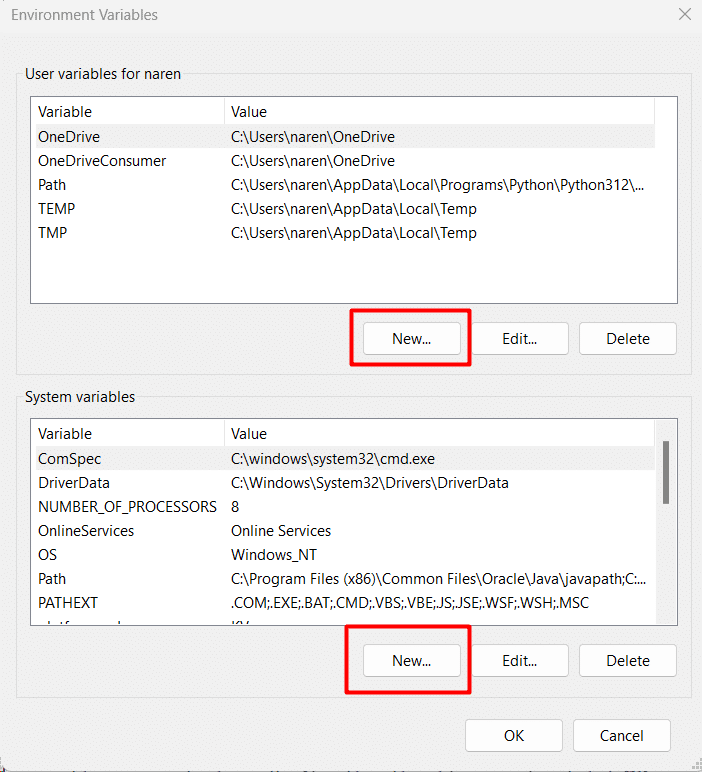
Click “Environment Variables” in the pop-up window.
-
Click “New” in the pop-up window, then enter the environment variable name, such as
LONGBRIDGE_APP_KEY,Valuerespectively fill in the App Key, App Secret, Access Token obtained from the page.
-
-
Through the CMD: Press the
Win + Rshortcut keys and enter thecmdcommand to start the command line (it is recommended to use Windows Terminal for a better development experience).Enter the following command in the command line to set the environment variable:
C:\Users\jason> setx LONGBRIDGE_APP_KEY "App Key from user center"
Success: the specified value has been saved.

C:\Users\jason> setx LONGBRIDGE_APP_SECRET "App Secret from user center"
Success: the specified value has been saved.

C:\Users\jason> setx LONGBRIDGE_ACCESS_TOKEN "Access Token from user center"
Success: the specified value has been saved.
:::caution Windows ENV Restrictions
Windows ENV Restrictions, when the above commands are executed successfully, you need to restart Windows or log out and log in again before you can read it.
:::
After logging out or restarting, open the command line again and enter the following command to verify that the environment variables are set correctly:
C:\Users\jason> set LONGBRIDGE
LONGBRIDGE_APP_KEY=xxxxxxx
LONGBRIDGE_APP_SECRET=xxxxxx
LONGBRIDGE_ACCESS_TOKEN=xxxxxxx
If it prints the value you just set correctly, then the environment variable is right.
Refresh Access Token
Info
This applies to Legacy API Key authentication only. OAuth 2.0 tokens are refreshed automatically by the SDK.
The Legacy API Key Access Token expires after 90 days by default. Call Config.refresh_access_token() to obtain a new token before it expires, then update your stored LONGBRIDGE_ACCESS_TOKEN with the returned value.
from datetime import datetime, timedelta
from longbridge.openapi import Config

config = Config.from_apikey("YOUR_APP_KEY", "YOUR_APP_SECRET", "YOUR_ACCESS_TOKEN")
# Expire 3 years from now
new_token = config.refresh_access_token(expired_at=datetime.now() + timedelta(days=365 * 3))
print("New access token:", new_token)
# Use the new token to build a new Config, or persist it as LONGBRIDGE_ACCESS_TOKEN
new_config = Config.from_apikey("YOUR_APP_KEY", "YOUR_APP_SECRET", new_token)
import asyncio
from datetime import datetime, timedelta
from longbridge.openapi import Config
async def main() -> None:
config = Config.from_apikey("YOUR_APP_KEY", "YOUR_APP_SECRET", "YOUR_ACCESS_TOKEN")
# Expire 3 years from now
new_token = await config.refresh_access_token_async(expired_at=datetime.now() + timedelta(days=365 * 3))
print("New access token:", new_token)
# Use the new token to build a new Config, or persist it as LONGBRIDGE_ACCESS_TOKEN
new_config = Config.from_apikey("YOUR_APP_KEY", "YOUR_APP_SECRET", new_token)
if __name__ == "__main__":
asyncio.run(main())const { Config } = require('longbridge')
const config = Config.fromApikey('YOUR_APP_KEY', 'YOUR_APP_SECRET', 'YOUR_ACCESS_TOKEN')
// Expire 3 years from now
const expiredAt = new Date()
expiredAt.setFullYear(expiredAt.getFullYear() + 3)
const newToken = await config.refreshAccessToken(expiredAt)
console.log('New access token:', newToken)
// Use the new token to build a new Config, or persist it as LONGBRIDGE_ACCESS_TOKEN
const newConfig = Config.fromApikey('YOUR_APP_KEY', 'YOUR_APP_SECRET', newToken)use longbridge::Config;
use time::{Duration, OffsetDateTime};
#[tokio::main]
async fn main() -> Result<(), Box<dyn std::error::Error>> {
let config = Config::from_apikey("YOUR_APP_KEY", "YOUR_APP_SECRET", "YOUR_ACCESS_TOKEN")?;
// Expire 3 years from now
let expired_at = OffsetDateTime::now_utc() + Duration::days(365 * 3);
let new_token = config.refresh_access_token(Some(expired_at)).await?;
println!("New access token: {}", new_token);
// Use the new token to build a new Config, or persist it as LONGBRIDGE_ACCESS_TOKEN
let new_config = Config::from_apikey("YOUR_APP_KEY", "YOUR_APP_SECRET", &new_token)?;
Ok(())
}import com.longbridge.Config;
import java.time.OffsetDateTime;
public class Main {
public static void main(String[] args) throws Exception {
Config config = Config.fromApikey("YOUR_APP_KEY", "YOUR_APP_SECRET", "YOUR_ACCESS_TOKEN");
// Expire 3 years from now
OffsetDateTime expiredAt = OffsetDateTime.now().plusYears(3);
String newToken = config.refreshAccessToken(expiredAt).get();
System.out.println("New access token: " + newToken);
// Use the new token to build a new Config, or persist it as LONGBRIDGE_ACCESS_TOKEN
Config newConfig = Config.fromApikey("YOUR_APP_KEY", "YOUR_APP_SECRET", newToken);
}
}#include <ctime>
#include <iostream>
#include <longbridge.hpp>
using namespace longbridge;
int main() {
Config config = Config::from_apikey("YOUR_APP_KEY", "YOUR_APP_SECRET", "YOUR_ACCESS_TOKEN");
// Expire 3 years from now (Unix timestamp)
int64_t expired_at = static_cast<int64_t>(std::time(nullptr)) + 3LL * 365 * 24 * 3600;
config.refresh_access_token(expired_at, [](auto res) {
if (!res) {
std::cerr << "Error: " << *res.status().message() << std::endl;
return;
}
std::cout << "New access token: " << *res << std::endl;
// Use the new token to build a new Config, or persist it as LONGBRIDGE_ACCESS_TOKEN
Config new_config = Config::from_apikey("YOUR_APP_KEY", "YOUR_APP_SECRET", *res);
});
std::cin.get();
return 0;
}The expired_at parameter sets when the new token expires (default: 90 days from now).
Scene Demonstration
Get Account Balance
Create account_asset.py and paste the code below:
from longbridge.openapi import TradeContext, Config, OAuthBuilder

oauth = OAuthBuilder("your-client-id").build(
    lambda url: print(f"Open this URL to authorize: {url}")
)
config = Config.from_oauth(oauth)
# Or use API Key: config = Config.from_apikey_env()
# Or without ENV: config = Config.from_apikey("YOUR_APP_KEY", "YOUR_APP_SECRET", "YOUR_ACCESS_TOKEN")

ctx = TradeContext(config)
resp = ctx.account_balance()
print(resp)
Run it
python account_asset.pyCreate account_asset_async.py and paste the code below:
import asyncio
from longbridge.openapi import AsyncTradeContext, Config, OAuthBuilder

async def main() -> None:
    oauth = await OAuthBuilder("your-client-id").build_async(
        lambda url: print(f"Open this URL to authorize: {url}")
    )
    config = Config.from_oauth(oauth)
    ctx = AsyncTradeContext.create(config)
    resp = await ctx.account_balance()
    print(resp)

if __name__ == "__main__":
    asyncio.run(main())
Run it
python account_asset_async.pyCreate account_asset.js and paste the code below:
const { Config, TradeContext, OAuth } = require('longbridge')

async function main() {
  const oauth = await OAuth.build('your-client-id', (_, url) => {
    console.log('Open this URL to authorize: ' + url)
  })
  const config = Config.fromOAuth(oauth)
  // Or use API Key: const config = Config.fromApikeyEnv()
  const ctx = TradeContext.new(config)
  const resp = await ctx.accountBalance()
  for (const obj of resp) {
    console.log(obj.toString())
  }
}
main().catch(console.error)
Run it
node account_asset.jsCreate main.rs and paste the code below:
use std::sync::Arc;

use longbridge::{oauth::OAuthBuilder, trade::TradeContext, Config};

#[tokio::main]
async fn main() -> Result<(), Box<dyn std::error::Error>> {
    let oauth = OAuthBuilder::new("your-client-id")
        .build(|url| println!("Open this URL to authorize: {url}"))
        .await?;
    let config = Arc::new(Config::from_oauth(oauth));
    // Or use API Key: let config = Arc::new(Config::from_apikey_env()?);
    // Or without ENV: let config = Arc::new(Config::from_apikey("YOUR_APP_KEY", "YOUR_APP_SECRET", "YOUR_ACCESS_TOKEN")?);

    let (ctx, _) = TradeContext::new(config);
    let resp = ctx.account_balance(None).await?;
    println!("{:?}", resp);
    Ok(())
}
Run it
cargo runCreate Main.java and paste the code below:
import com.longbridge.*;
import com.longbridge.trade.*;

class Main {
    public static void main(String[] args) throws Exception {
        String clientId = "your-client-id";
        OAuth oauth = new OAuthBuilder(clientId)
                .build(url -> System.out.println("Open to authorize: " + url))
                .get();
        try (oauth;
             Config config = Config.fromOAuth(oauth);
             TradeContext ctx = TradeContext.create(config)) {
            // Or use API Key: Config.fromApikeyEnv(); TradeContext.create(config)
            for (AccountBalance obj : ctx.getAccountBalance().get()) {
                System.out.println(obj);
            }
        }
    }
}
Run it
mvn compile exec:execCreate main.go and paste the code below:
package main

import (
	"context"
	"fmt"
	"log"

	"github.com/longbridge/openapi-go/config"
	"github.com/longbridge/openapi-go/oauth"
	"github.com/longbridge/openapi-go/trade"
)

func main() {
	o := oauth.New("your-client-id").
		OnOpenURL(func(url string) { fmt.Println("Open this URL to authorize:", url) })
	if err := o.Build(context.Background()); err != nil {
		log.Fatal(err)
	}
	conf, err := config.New(config.WithOAuthClient(o))
	// Or use API Key from ENV: config.New()
	// Or without ENV: config.New(config.WithConfigKey("YOUR_APP_KEY", "YOUR_APP_SECRET", "YOUR_ACCESS_TOKEN"))
	if err != nil {
		log.Fatal(err)
	}
	tradeContext, err := trade.NewFromCfg(conf)
	if err != nil {
		log.Fatal(err)
	}
	defer tradeContext.Close()
	ctx := context.Background()
	ab, err := tradeContext.AccountBalance(ctx, &trade.GetAccountBalance{})
	if err != nil {
		log.Fatal(err)
	}
	fmt.Printf("%+v\n", ab[0])
}
Run:
go mod tidy
go run ./
Create account_asset.cpp and paste the code below:
#include <iostream>
#include <longbridge.hpp>

#ifdef WIN32
#include <windows.h>
#endif

using namespace longbridge;
using namespace longbridge::trade;

static void
run(const OAuth& oauth)
{
    Config config = Config::from_oauth(oauth);
    TradeContext ctx = TradeContext::create(config);

    ctx.account_balance([](auto res) {
        if (!res) {
            std::cout << "failed: " << *res.status().message() << std::endl;
            return;
        }
        for (const auto& b : *res) {
            std::cout << b.currency << " " << (double)b.available_cash << std::endl;
        }
    });
}

int main(int argc, char const* argv[]) {
#ifdef WIN32
    SetConsoleOutputCP(CP_UTF8);
#endif

    const std::string client_id = "your-client-id";
    OAuthBuilder(client_id).build(
    [](const std::string& url) {
        std::cout << "Open this URL to authorize: " << url << std::endl;
    },
    [](auto res) {
        if (!res) {
            std::cout << "authorization failed: " << *res.status().message() << std::endl;
            return;
        }
        run(*res);
    });

    std::cin.get();
    return 0;
}
Run it
g++ -std=c++17 account_asset.cpp -o account_asset -llongbridge && ./account_assetAfter running, the output is as follows:
[
  AccountBalance {
    total_cash: 503898884.81,
    max_finance_amount: 0.00,
    remaining_finance_amount: 501403229.49,
    risk_level: Some(1),
    margin_call: 0,
    currency: "HKD",
    cash_infos: [
      CashInfo {
        withdraw_cash: 501214985.15,
        available_cash: 501214985.15,
        frozen_cash: 584438.25,
        settling_cash: -3897793.90,
        currency: "HKD",
      },
      CashInfo {
        withdraw_cash: -25546.89,
        available_cash: -25546.89,
        frozen_cash: 295768.57,
        settling_cash: 2326.60,
        currency: "USD",
      }
    ]
  }
]
Subscribe Quote
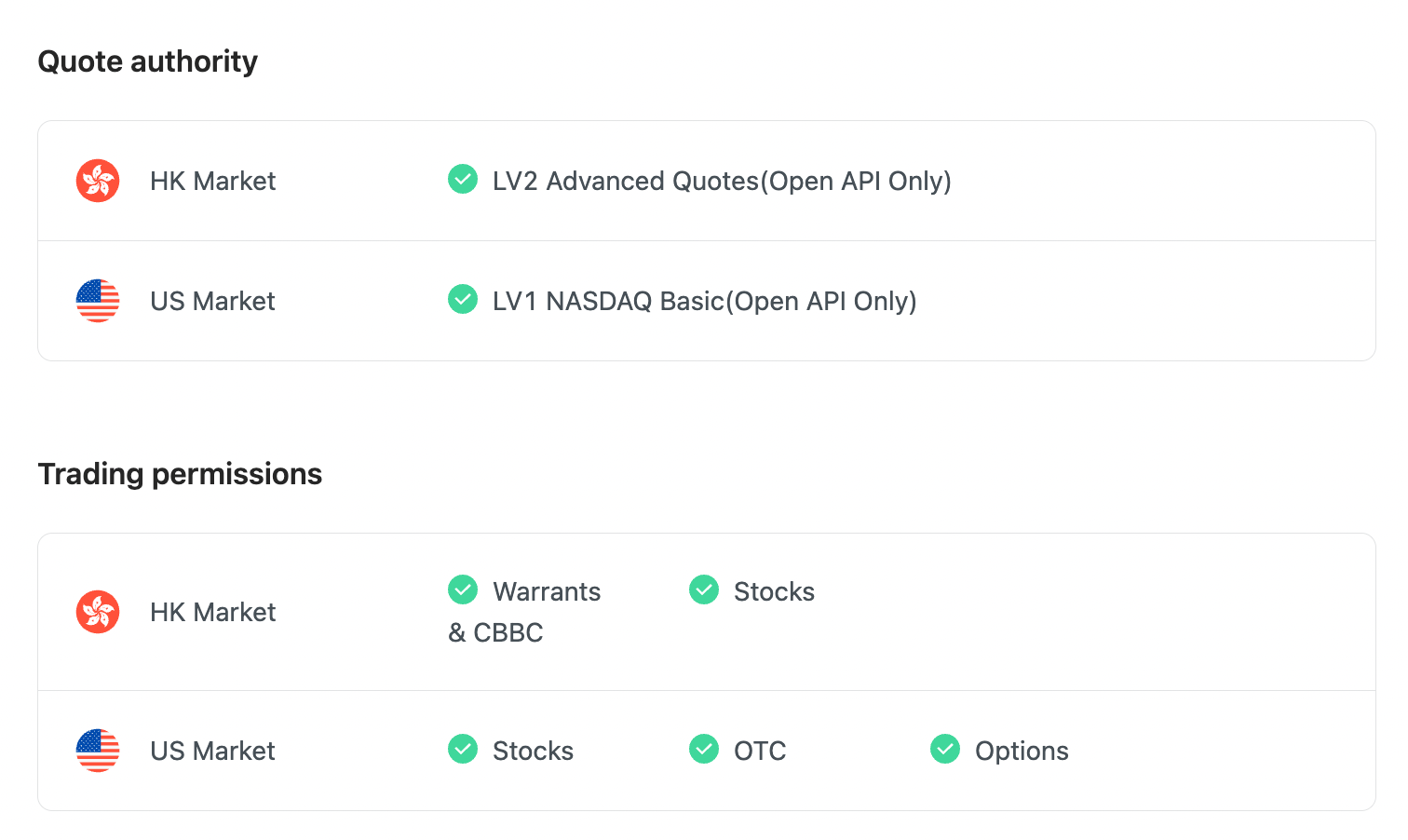
To subscribe to market data, please check the Developer Center - “Quote authority” is correct
- HK Market - BMP basic quotation is unable to subscribe with WebSocket as it has no real-time quote push.
- US Market - US LV1 (Only OpenAPI).
Before running, visit the Developer Center and ensure that the account has the correct quote level.
Info
If you do not have the quotes authority, you can enter “Me - My Quotes - Store” to purchase the authority through the “Longbridge” mobile app.
When you have the correct Quote authority, it might look like this:
Create subscribe_quote.py and paste the code below:
from time import sleep
from longbridge.openapi import QuoteContext, Config, OAuthBuilder, SubType, PushQuote


def on_quote(symbol: str, quote: PushQuote):
    print(symbol, quote)


oauth = OAuthBuilder("your-client-id").build(
    lambda url: print(f"Open this URL to authorize: {url}")
)
config = Config.from_oauth(oauth)
ctx = QuoteContext(config)
ctx.set_on_quote(on_quote)
ctx.subscribe(["700.HK", "AAPL.US", "TSLA.US", "NFLX.US"], [SubType.Quote])
sleep(30)
Run it
python subscribe_quote.pyCreate subscribe_quote_async.py and paste the code below:
import asyncio
from longbridge.openapi import AsyncQuoteContext, Config, OAuthBuilder, SubType, PushQuote


async def on_quote(symbol: str, quote: PushQuote) -> None:
    print(symbol, quote)


async def main() -> None:
    oauth = await OAuthBuilder("your-client-id").build_async(
        lambda url: print(f"Open this URL to authorize: {url}")
    )
    config = Config.from_oauth(oauth)
    ctx = AsyncQuoteContext.create(config, loop_=asyncio.get_running_loop())
    ctx.set_on_quote(on_quote)
    await ctx.subscribe(["700.HK", "AAPL.US", "TSLA.US", "NFLX.US"], [SubType.Quote])
    await asyncio.sleep(30)

if __name__ == "__main__":
    asyncio.run(main())
Run it
python subscribe_quote_async.pyCreate subscribe_quote.js and paste the code below:
const { Config, QuoteContext, SubType, OAuth } = require('longbridge')

async function main() {
  const oauth = await OAuth.build('your-client-id', (_, url) => {
    console.log('Open this URL to authorize: ' + url)
  })
  const config = Config.fromOAuth(oauth)
  const ctx = QuoteContext.new(config)
  ctx.setOnQuote((_, event) => console.log(event.toString()))
  await ctx.subscribe(['700.HK', 'AAPL.US', 'TSLA.US', 'NFLX.US'], [SubType.Quote])
  await new Promise(() => {})
}
main().catch(console.error)
Run it
node subscribe_quote.jsCreate main.rs and paste the code below:
use std::sync::Arc;

use longbridge::{
    oauth::OAuthBuilder,
    quote::{QuoteContext, SubFlags},
    Config,
};

#[tokio::main]
async fn main() -> Result<(), Box<dyn std::error::Error>> {
    let oauth = OAuthBuilder::new("your-client-id")
        .build(|url| println!("Open this URL to authorize: {url}"))
        .await?;
    let config = Arc::new(Config::from_oauth(oauth));
    let (ctx, mut receiver) = QuoteContext::new(config);

    ctx.subscribe(["700.HK", "AAPL.US", "TSLA.US", "NFLX.US"], SubFlags::QUOTE)
        .await?;

    while let Some(event) = receiver.recv().await {
        println!("{:?}", event);
    }
    Ok(())
}
Run it
cargo runCreate Main.java and paste the code below:
import com.longbridge.*;
import com.longbridge.quote.*;

class Main {
    public static void main(String[] args) throws Exception {
        String clientId = "your-client-id";
        OAuth oauth = new OAuthBuilder(clientId)
                .build(url -> System.out.println("Open to authorize: " + url))
                .get();
        try (oauth;
             Config config = Config.fromOAuth(oauth);
             QuoteContext ctx = QuoteContext.create(config)) {
            ctx.setOnQuote((symbol, quote) -> {
                System.out.printf("%s\t%s\n", symbol, quote);
            });
            ctx.subscribe(new String[] { "700.HK", "AAPL.US", "TSLA.US", "NFLX.US" }, SubFlags.Quote).get();
            Thread.sleep(30000);
        }
    }
}
Run it
mvn compile exec:execCreate file main.go and paste the code below:
package main

import (
    "context"
    "encoding/json"
    "fmt"
    "log"
    "os"
    "os/signal"
    "syscall"
    "time"

    "github.com/longbridge/openapi-go/config"
    "github.com/longbridge/openapi-go/quote"
)

func main() {
 // create quote context from environment variables
    conf, err := config.New()
    if err != nil {
        log.Fatal(err)
    }
    quoteContext, err := quote.NewFromCfg(conf)
    if err != nil {
        log.Fatal(err)
        return
    }
    defer quoteContext.Close()
    ctx := context.Background()
    quoteContext.OnQuote(func(pe *quote.PushQuote) {
        bytes, _ := json.Marshal(pe)
        fmt.Println(string(bytes))
    })
    quoteContext.OnDepth(func(d *quote.PushDepth) {
        bytes, _ := json.Marshal(d)
        if d.Sequence != 0 {
            fmt.Print(time.UnixMicro(d.Sequence/1000).Format(time.RFC3339) + " ")
        }
        fmt.Println(string(bytes))
    })

    // Subscribe some symbols
    err = quoteContext.Subscribe(ctx, []string{"700.HK", "AAPL.US", "NFLX.US"}, []quote.SubType{quote.SubTypeDepth}, true)
    if err != nil {
        log.Fatal(err)
        return
    }

    quitChannel := make(chan os.Signal, 1)
    signal.Notify(quitChannel, syscall.SIGINT, syscall.SIGTERM)
    <-quitChannel
}
Run:
go run ./Create subscribe_quote.cpp and paste the code below:
#include <iostream>
#include <longbridge.hpp>

#ifdef WIN32
#include <windows.h>
#endif

using namespace longbridge;
using namespace longbridge::quote;

static QuoteContext g_ctx;

static void
run(const OAuth& oauth)
{
    Config config = Config::from_oauth(oauth);
    g_ctx = QuoteContext::create(config);

    g_ctx.set_on_quote([](auto event) {
        std::cout << event->symbol
                  << " last_done=" << (double)event->last_done
                  << " volume=" << event->volume << std::endl;
    });

    std::vector<std::string> symbols = {"700.HK", "AAPL.US", "TSLA.US", "NFLX.US"};
    g_ctx.subscribe(symbols, SubFlags::QUOTE(), [](auto res) {
        if (!res) {
            std::cout << "failed to subscribe: " << *res.status().message() << std::endl;
        }
    });
}

int main(int argc, char const* argv[]) {
#ifdef WIN32
    SetConsoleOutputCP(CP_UTF8);
#endif

    const std::string client_id = "your-client-id";
    OAuthBuilder(client_id).build(
    [](const std::string& url) {
        std::cout << "Open this URL to authorize: " << url << std::endl;
    },
    [](auto res) {
        if (!res) {
            std::cout << "authorization failed: " << *res.status().message() << std::endl;
            return;
        }
        run(*res);
    });

    std::cin.get();
    return 0;
}
Run it
g++ -std=c++17 subscribe_quote.cpp -o subscribe_quote -llongbridge && ./subscribe_quoteAfter running, the output is as follows:
700.HK PushQuote {
    last_done: 367.000,
    open: 362.000,
    high: 369.400,
    low: 356.000,
    timestamp: "2022-06-06T08:10:00Z",
    volume: 22377421,
    turnover: 8081883405.000,
    trade_status: Normal,
    trade_session: Normal
  }
AAPL.US PushQuote {
  last_done: 147.350,
  open: 150.700,
  high: 151.000,
  low: 146.190,
  timestamp: "2022-06-06T11:57:36Z",
  volume: 3724407,
  turnover: 550606662.815,
  trade_status: Normal,
  trade_session: Pre
}
NFLX.US PushQuote {
  last_done: 201.250,
  open: 205.990,
  high: 205.990,
  low: 200.110,
  timestamp: "2022-06-06T11:57:26Z",
  volume: 137821,
  turnover: 27888085.590,
  trade_status: Normal,
  trade_session: Pre
}
Submit Order
Next, we will do a submit order action, we assume that to buy 700.HK at 50 HKD and quantity is 100.
NOTE: In order to prevent a successful test buy, the demo here gives a lower price and avoids the transaction. OpenAPI operations are equivalent to online transactions, please operate with caution, and pay attention to parameter details during development and debugging.
Create submit_order.py and paste the code below:
from decimal import Decimal
from longbridge.openapi import TradeContext, Config, OAuthBuilder, OrderSide, OrderType, TimeInForceType

oauth = OAuthBuilder("your-client-id").build(
    lambda url: print(f"Open this URL to authorize: {url}")
)
config = Config.from_oauth(oauth)
ctx = TradeContext(config)

resp = ctx.submit_order(
    side=OrderSide.Buy,
    symbol="700.HK",
    order_type=OrderType.LO,
    submitted_price=Decimal(50),
    submitted_quantity=Decimal(200),
    time_in_force=TimeInForceType.Day,
    remark="Hello from Python SDK",
)
print(resp)
Run it
python submit_order.pyCreate submit_order_async.py and paste the code below:
import asyncio
from decimal import Decimal
from longbridge.openapi import AsyncTradeContext, Config, OAuthBuilder, OrderSide, OrderType, TimeInForceType

async def main() -> None:
    oauth = await OAuthBuilder("your-client-id").build_async(
        lambda url: print(f"Open this URL to authorize: {url}")
    )
    config = Config.from_oauth(oauth)
    ctx = AsyncTradeContext.create(config)
    resp = await ctx.submit_order(
        side=OrderSide.Buy,
        symbol="700.HK",
        order_type=OrderType.LO,
        submitted_price=Decimal(50),
        submitted_quantity=Decimal(200),
        time_in_force=TimeInForceType.Day,
        remark="Hello from Python SDK",
    )
    print(resp)

if __name__ == "__main__":
    asyncio.run(main())
Run it
python submit_order_async.pyCreate submit_order.js and paste the code below:
const { Config, TradeContext, OrderType, OrderSide, Decimal, TimeInForceType, OAuth } = require('longbridge')

async function main() {
  const oauth = await OAuth.build('your-client-id', (_, url) => {
    console.log('Open this URL to authorize: ' + url)
  })
  const config = Config.fromOAuth(oauth)
  const ctx = TradeContext.new(config)
  const resp = await ctx.submitOrder({
    symbol: '700.HK',
    orderType: OrderType.LO,
    side: OrderSide.Buy,
    timeInForce: TimeInForceType.Day,
    submittedPrice: new Decimal(50),
    submittedQuantity: new Decimal(200),
  })
  console.log(resp.toString())
}
main().catch(console.error)
Run it
node submit_order.jsCreate main.rs and paste the code below:
use std::sync::Arc;

use longbridge::{
    decimal,
    oauth::OAuthBuilder,
    trade::{OrderSide, OrderType, SubmitOrderOptions, TimeInForceType, TradeContext},
    Config,
};

#[tokio::main]
async fn main() -> Result<(), Box<dyn std::error::Error>> {
    let oauth = OAuthBuilder::new("your-client-id")
        .build(|url| println!("Open this URL to authorize: {url}"))
        .await?;
    let config = Arc::new(Config::from_oauth(oauth));
    let (ctx, _) = TradeContext::new(config);

    let opts = SubmitOrderOptions::new(
        "700.HK",
        OrderType::LO,
        OrderSide::Buy,
        decimal!(200),
        TimeInForceType::Day,
    )
    .submitted_price(decimal!(50i32));
    let resp = ctx.submit_order(opts).await?;
    println!("{:?}", resp);
    Ok(())
}
Run it
cargo runCreate Main.java and paste the code below:
import com.longbridge.*;
import com.longbridge.trade.*;
import java.math.BigDecimal;

public class Main {
    public static void main(String[] args) throws Exception {
        String clientId = "your-client-id";
        OAuth oauth = new OAuthBuilder(clientId)
                .build(url -> System.out.println("Open to authorize: " + url))
                .get();
        try (oauth;
             Config config = Config.fromOAuth(oauth);
             TradeContext ctx = TradeContext.create(config)) {
            SubmitOrderOptions opts = new SubmitOrderOptions("700.HK",
                    OrderType.LO,
                    OrderSide.Buy,
                    new BigDecimal(200),
                    TimeInForceType.Day).setSubmittedPrice(new BigDecimal(50));
            SubmitOrderResponse resp = ctx.submitOrder(opts).get();
            System.out.println(resp);
        }
    }
}
Run it
mvn compile exec:execCreate main.go and paste the code below:
package main

import (
    "context"
    "fmt"
    "log"
    "os"
    "os/signal"
    "syscall"

    "github.com/shopspring/decimal"

    "github.com/longbridge/openapi-go/config"
    "github.com/longbridge/openapi-go/trade"
)

func main() {
    // create trade context from environment variables
    conf, err := config.New()
    if err != nil {
        log.Fatal(err)
    }
    tradeContext, err := trade.NewFromCfg(conf)
    if err != nil {
        log.Fatal(err)
        return
    }


    defer tradeContext.Close()

    // subscribe order status
    tradeContext.OnTrade(func(ev *trade.PushEvent) {
        // handle order changing event
    })

    ctx := context.Background()
    // submit order
    order := &trade.SubmitOrder{
        Symbol:            "700.HK",
        OrderType:         trade.OrderTypeLO,
        Side:              trade.OrderSideBuy,
        SubmittedQuantity: 200,
        TimeInForce:       trade.TimeTypeDay,
        SubmittedPrice:    decimal.NewFromFloat(12),
    }
    orderId, err := tradeContext.SubmitOrder(ctx, order)
    if err != nil {
        log.Fatal(err)
        return
    }
    fmt.Printf("orderId: %v\n", orderId)


    quitChannel := make(chan os.Signal, 1)
    signal.Notify(quitChannel, syscall.SIGINT, syscall.SIGTERM)
    <-quitChannel
}
运行:
go run ./Create submit_order.cpp and paste the code below:
#include <iostream>
#include <longbridge.hpp>

#ifdef WIN32
#include <windows.h>
#endif

using namespace longbridge;
using namespace longbridge::trade;

static void
run(const OAuth& oauth)
{
    Config config = Config::from_oauth(oauth);
    TradeContext ctx = TradeContext::create(config);

    SubmitOrderOptions opts{
        "700.HK",     OrderType::LO,        OrderSide::Buy,
        Decimal(200), TimeInForceType::Day,  Decimal(50.0),
        std::nullopt, std::nullopt,          std::nullopt,
        std::nullopt, std::nullopt,          std::nullopt,
        std::nullopt,
    };
    ctx.submit_order(opts, [](auto res) {
        if (!res) {
            std::cout << "failed: " << *res.status().message() << std::endl;
            return;
        }
        std::cout << "order id: " << res->order_id << std::endl;
    });
}

int main(int argc, char const* argv[]) {
#ifdef WIN32
    SetConsoleOutputCP(CP_UTF8);
#endif

    const std::string client_id = "your-client-id";
    OAuthBuilder(client_id).build(
    [](const std::string& url) {
        std::cout << "Open this URL to authorize: " << url << std::endl;
    },
    [](auto res) {
        if (!res) {
            std::cout << "authorization failed: " << *res.status().message() << std::endl;
            return;
        }
        run(*res);
    });

    std::cin.get();
    return 0;
}
Run it
g++ -std=c++17 submit_order.cpp -o submit_order -llongbridge && ./submit_orderAfter running, the output is as follows:
SubmitOrderResponse { order_id: "718437534753550336" }Get Today Orders
Create today_orders.py and paste the code below:
from longbridge.openapi import TradeContext, Config, OAuthBuilder

oauth = OAuthBuilder("your-client-id").build(
    lambda url: print(f"Open this URL to authorize: {url}")
)
config = Config.from_oauth(oauth)
ctx = TradeContext(config)
resp = ctx.today_orders()
print(resp)
Run it
python today_orders.pyCreate today_orders_async.py and paste the code below:
import asyncio
from longbridge.openapi import AsyncTradeContext, Config, OAuthBuilder

async def main() -> None:
    oauth = await OAuthBuilder("your-client-id").build_async(
        lambda url: print(f"Open this URL to authorize: {url}")
    )
    config = Config.from_oauth(oauth)
    ctx = AsyncTradeContext.create(config)
    resp = await ctx.today_orders()
    print(resp)

if __name__ == "__main__":
    asyncio.run(main())
Run it
python today_orders_async.pyCreate today_orders.js and paste the code below:
const { Config, TradeContext, OAuth } = require('longbridge')

async function main() {
  const oauth = await OAuth.build('your-client-id', (_, url) => {
    console.log('Open this URL to authorize: ' + url)
  })
  const config = Config.fromOAuth(oauth)
  const ctx = TradeContext.new(config)
  const resp = await ctx.todayOrders()
  for (const obj of resp) {
    console.log(obj.toString())
  }
}
main().catch(console.error)
Run it
node today_orders.jsCreate main.rs and paste the code below:
use std::sync::Arc;

use longbridge::{oauth::OAuthBuilder, trade::TradeContext, Config};

#[tokio::main]
async fn main() -> Result<(), Box<dyn std::error::Error>> {
    let oauth = OAuthBuilder::new("your-client-id")
        .build(|url| println!("Open this URL to authorize: {url}"))
        .await?;
    let config = Arc::new(Config::from_oauth(oauth));
    let (ctx, _) = TradeContext::new(config);

    let resp = ctx.today_orders(None).await?;
    for obj in resp {
        println!("{:?}", obj);
    }
    Ok(())
}
Run it
cargo runCreate Main.java and paste the code below:
import com.longbridge.*;
import com.longbridge.trade.*;

class Main {
    public static void main(String[] args) throws Exception {
        String clientId = "your-client-id";
        OAuth oauth = new OAuthBuilder(clientId)
                .build(url -> System.out.println("Open to authorize: " + url))
                .get();
        try (oauth;
             Config config = Config.fromOAuth(oauth);
             TradeContext ctx = TradeContext.create(config)) {
            Order[] orders = ctx.getTodayOrders(null).get();
            for (Order order : orders) {
                System.out.println(order);
            }
        }
    }
}
Run it
mvn compile exec:execCreate main.go and paste the code below:
package main

import (
    "context"
    "fmt"
    "log"

    "github.com/longbridge/openapi-go/config"
    "github.com/longbridge/openapi-go/trade"
)

func main() {
    // create trade context from environment variables
    conf, err := config.New()
    if err != nil {
        log.Fatal(err)
    }
    tradeContext, err := trade.NewFromCfg(conf)
    if err != nil {
        log.Fatal(err)
    }
    defer tradeContext.Close()
    ctx := context.Background()
    // today orders
    orders, err := tradeContext.TodayOrders(ctx, &trade.GetTodayOrders{})
    if err != nil {
        log.Fatal(err)
    }

    for _, order := range orders {
        fmt.Printf("%+v\n", order)
    }
}
Run:
go run ./Create today_orders.cpp and paste the code below:
#include <iostream>
#include <longbridge.hpp>

#ifdef WIN32
#include <windows.h>
#endif

using namespace longbridge;
using namespace longbridge::trade;

static void
run(const OAuth& oauth)
{
    Config config = Config::from_oauth(oauth);
    TradeContext ctx = TradeContext::create(config);

    ctx.today_orders(std::nullopt, [](auto res) {
        if (!res) {
            std::cout << "failed: " << *res.status().message() << std::endl;
            return;
        }
        for (auto it = res->cbegin(); it != res->cend(); ++it) {
            std::cout << "order_id=" << it->order_id
                      << " quantity=" << it->quantity << std::endl;
        }
    });
}

int main(int argc, char const* argv[]) {
#ifdef WIN32
    SetConsoleOutputCP(CP_UTF8);
#endif

    const std::string client_id = "your-client-id";
    OAuthBuilder(client_id).build(
    [](const std::string& url) {
        std::cout << "Open this URL to authorize: " << url << std::endl;
    },
    [](auto res) {
        if (!res) {
            std::cout << "authorization failed: " << *res.status().message() << std::endl;
            return;
        }
        run(*res);
    });

    std::cin.get();
    return 0;
}
Run it
g++ -std=c++17 today_orders.cpp -o today_orders -llongbridge && ./today_ordersAfter running, the output is as follows:
Order {
  order_id: "718437534753550336",
  status: NotReported,
  stock_name: "腾讯控股 1",
  quantity: 200,
  executed_quantity: None,
  price: Some(50.000),
  executed_price: None,
  submitted_at: 2022-06-06T12:14:16Z,
  side: Buy,
  symbol: "700.HK",
  order_type: LO,
  last_done: None,
  trigger_price: Some(0.000),
  msg: "",
  tag: Normal,
  time_in_force: Day,
  expire_date: Some(NaiveDate(Date { year: 2022, ordinal: 158 })),
  updated_at: Some(2022-06-06T12:14:16Z),
  trigger_at: None,
  trailing_amount: None,
  trailing_percent: None,
  limit_offset: None,
  trigger_status: None,
  currency: "HKD",
  outside_rth: nonce
}
The above example has fully demonstrated how to use the SDK to access the OpenAPI interface. For more interfaces, please read the Longbridge Developers Documentation in detail and use them according to different interfaces.
More Examples
We provide the complete code of the above examples in the GitHub repository of Longbridge OpenAPI Python SDK, and we will continue to add or update it later.
https://github.com/longbridge/openapi/tree/master/examples
SDK API Document
For detailed SDK API document, please visit:
https://longbridge.github.io/openapi/
Contact & Feedback
If there are any questions or suggestions, please feel free to post an issue on GitHub, we will reply as soon as possible.
Or there have a lot old discussion in the GitHub issue, you can search the issue to find the answer.